The notebook page
Each instrument has its own notebook, with a page of its own for each lesson. On the page you write down what the teacher assigned, and your child practises from it until the next lesson.
Add a new page
- On your child's page, tap Open notebook next to the instrument.
- Tap New lesson page.
- Under Lesson date, choose the day of the lesson, even if you write it up a few days later.
- Tap Create page.
Your child practises from the newest page dated today or earlier. A page dated later waits for its day, so you can write next week's page ahead of time. If the instrument has a lesson day, the app offers to add a new page on that day.
Add tasks
Tap Add a task and fill in:
- What to practise: in your own words, for example "Minuet in G, bars 1–8".
- Kind: piece, scale, technique, theory, listening or other. The kind gives the task its picture.
- Picture: Same as the kind, or another picture, so that two tasks don't look the same.
- Repetitions a day (optional): how many times through each day. Your child fills one bubble for each.
- Tempo in beats a minute (optional): the tempo the teacher asked for.
- Notes (optional): a reminder for this task, such as "keep the wrist loose".
Tap Save. A page holds up to 30 tasks.
Your child sees each task's picture and title in kid mode. The tempo and the notes show only at the reading level Full text. With Pictures, the picture is all your child has to go by, so give each task its own. More in Kid mode.
The teacher's notes
Teacher's notes are for you: what the teacher said in the lesson, what to listen for, the date of the next concert. They're on the page, not on the tasks, and your child doesn't see them in kid mode. Tap Save after writing.
One exercise, several ways
Teachers often ask for one thing in several ways: a scale slow, medium and quick, or a passage with the left hand, the right hand and both. Write it as a group:
- Add the first task, for example "D major scale" at tempo 60.
- Under it, tap Add a variation. The form opens as a copy of the task: change what differs, in this case the tempo, and tap Save.
- Add a variation for each way the teacher asked for.
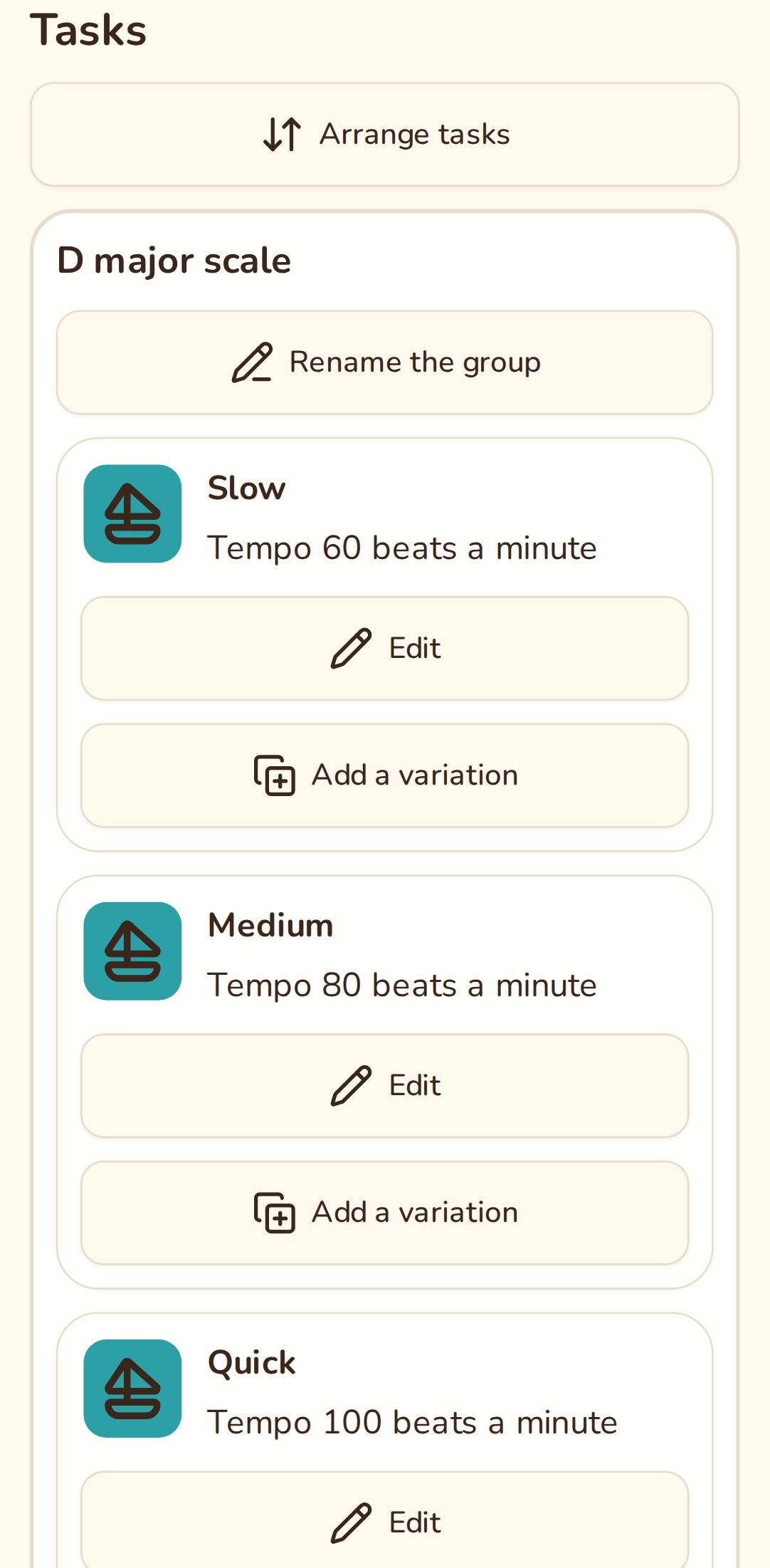
The tasks now sit together under one heading, named after the first task. Give each its own short name, such as "Slow", and change the heading with Rename the group. In kid mode the group is one framed block, with its own bubbles on each row.
Arrange tasks shows the buttons for moving tasks and groups up and down, Group with the task above, Take out of the group and Ungroup.
Copy last week's page
Most weeks the teacher carries on with some of the same pieces, so you don't need to write them again:
- Tap New lesson page and choose the Lesson date.
- The new page copies the newest page. To copy another one, choose it under Copy from.
- Untick the tasks the teacher dropped. A group comes over whole.
- Tap Create page, then add what's new.
The teacher's notes aren't copied. Start blank makes an empty page instead, and Copy to a new page on any page copies that page.
Older pages
The page your child practises from is the Current page. The others are listed under Other pages: tap one to read it or correct it. Delete page removes the page and its tasks.
New to the app? Start with Getting started.