Kid mode
Kid mode is the app as your child sees it: big pictures, few words, and nothing that changes your notebook pages or settings. A PIN keeps the grown-up pages closed.
Start kid mode
- On Home, tap Kid mode.
- Under Who is practising?, tap your child's name.
- The first time, choose a four-digit PIN and enter it again. Pick digits you use nowhere else.
If your child has more than one instrument, they choose one next. The device stays in kid mode until someone enters the PIN, even if the app is closed and opened again.
What your child sees
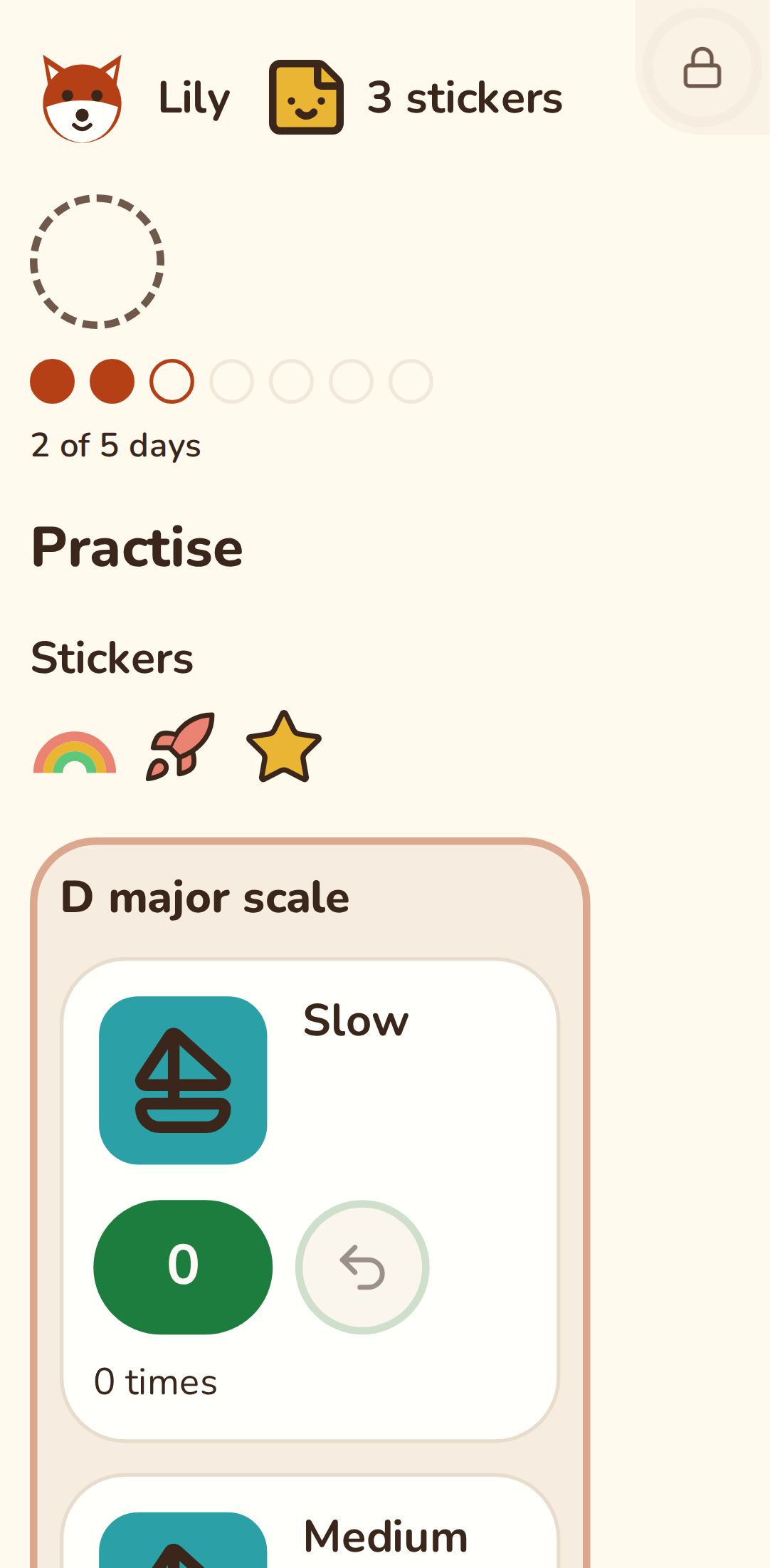
At the top are your child's picture and name, this week's practice days and their stickers. Below them:
- The checklist: the tasks on the newest notebook page, each with its picture.
- The bubbles: one for each time through a task. A tap fills the next bubble, and Take one back undoes it. When the day's target is reached, the task says Enough for today. A task with no target simply counts up.
- The timer, if your child wants it: they start it with Start and take a break with Pause.
- When they're done, they tap Done, pick a face for how it went (hard, okay or great) and tap Finish.
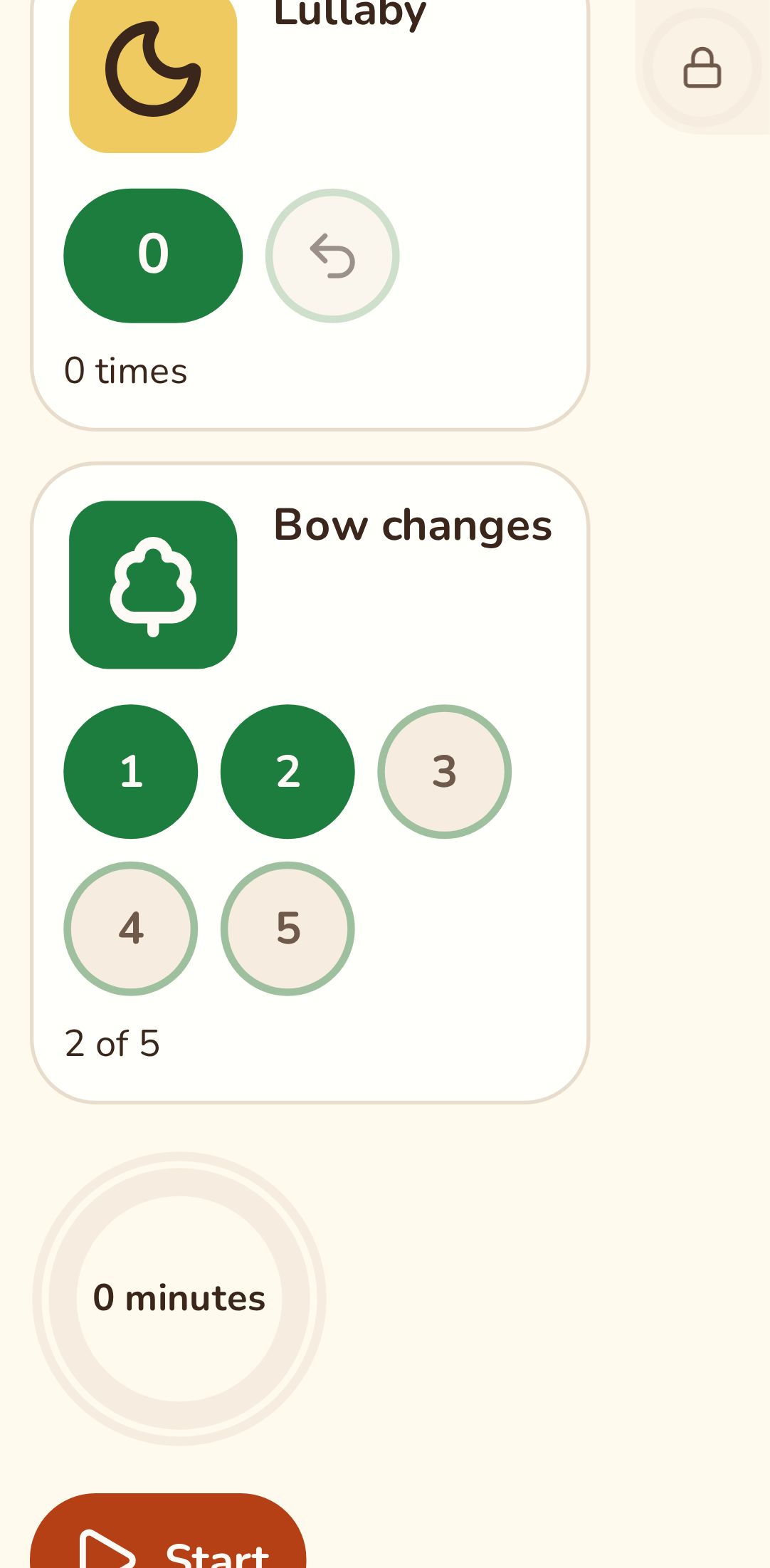
If the page has no tasks, your child can still practise freely with the timer.
With the reading level Pictures, the buttons show only their pictures.
The sticker
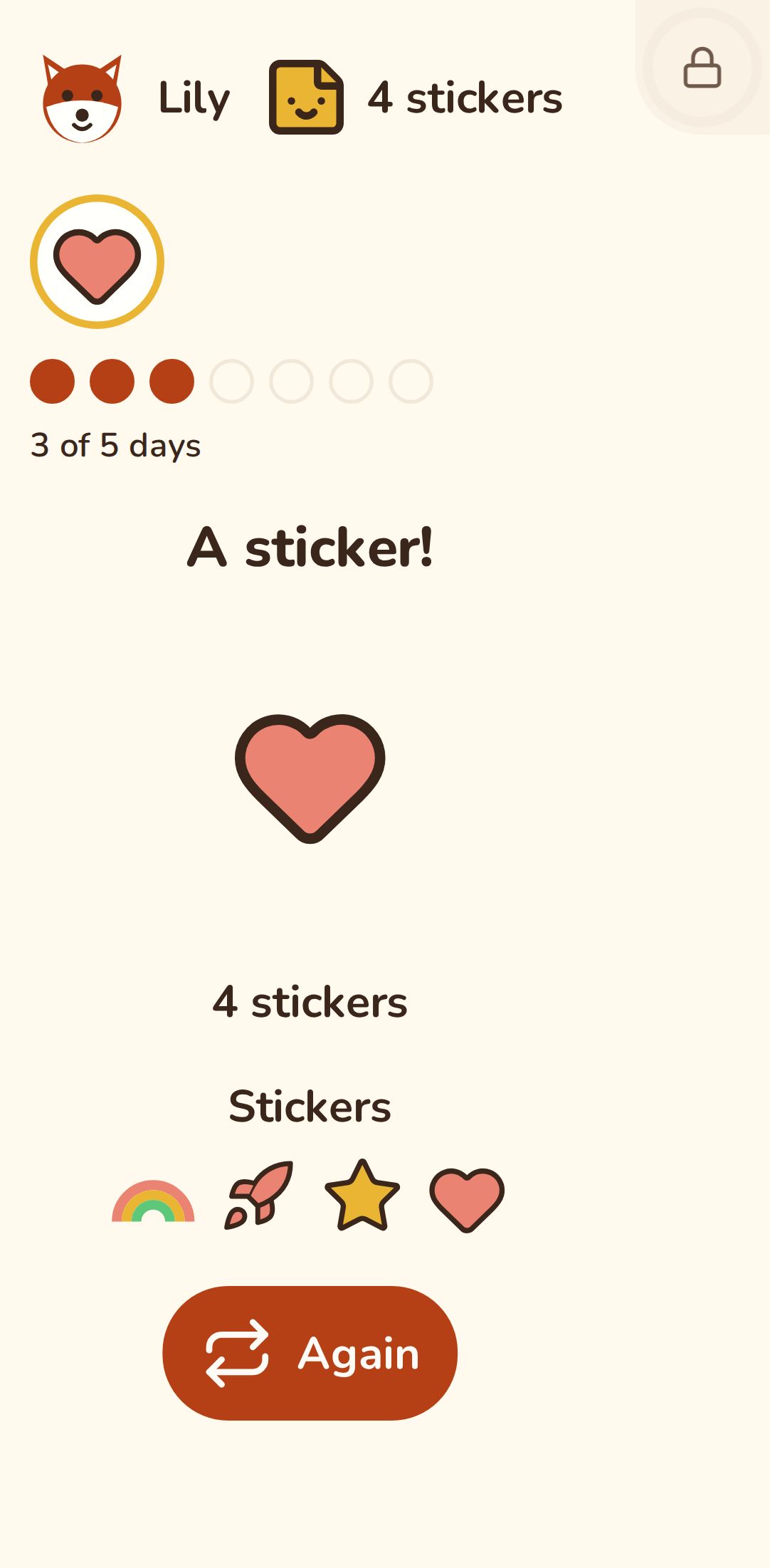
Each day your child practises, they get that day's sticker: one a day, however many times they practise. Practising again later the same day is welcome, and the sticker is already theirs.
Reading level
Each child has a reading level, which sets how much text kid mode shows:
- Pictures: pictures only, with no words or numbers, for a child who doesn't read yet.
- Simple words: short words next to the pictures.
- Full text: whole sentences.
To change it, open your child's page by tapping their card on Home, choose a Reading level and tap Save.
With Pictures, give each task its own picture. A child who can't read yet can't tell two tasks with the same picture apart, and the app warns you when that happens.
Leave kid mode
- Hold the button in the top corner of the screen for three seconds.
- Enter the PIN.
After too many wrong tries, the app asks you to wait a moment before trying again.
Change or forget the PIN
- Change the PIN: tap Kid mode on Home, then Change PIN below the children.
- Forgot the PIN: on the PIN screen, tap I forgot the PIN. Signing out removes the PIN and kid mode from this device. Sign in again and choose a new PIN. Practice that's already saved stays in your diary.
Confirming practice
Practice from kid mode shows on the week page straight away. If you'd also like to confirm each practice, so you know which ones you've seen, go to Settings and, under Confirm practice logged in kid mode, choose Ask me to confirm it. New practices then wait on the week page until you confirm them.
Setting up for the first time? Start with Getting started.